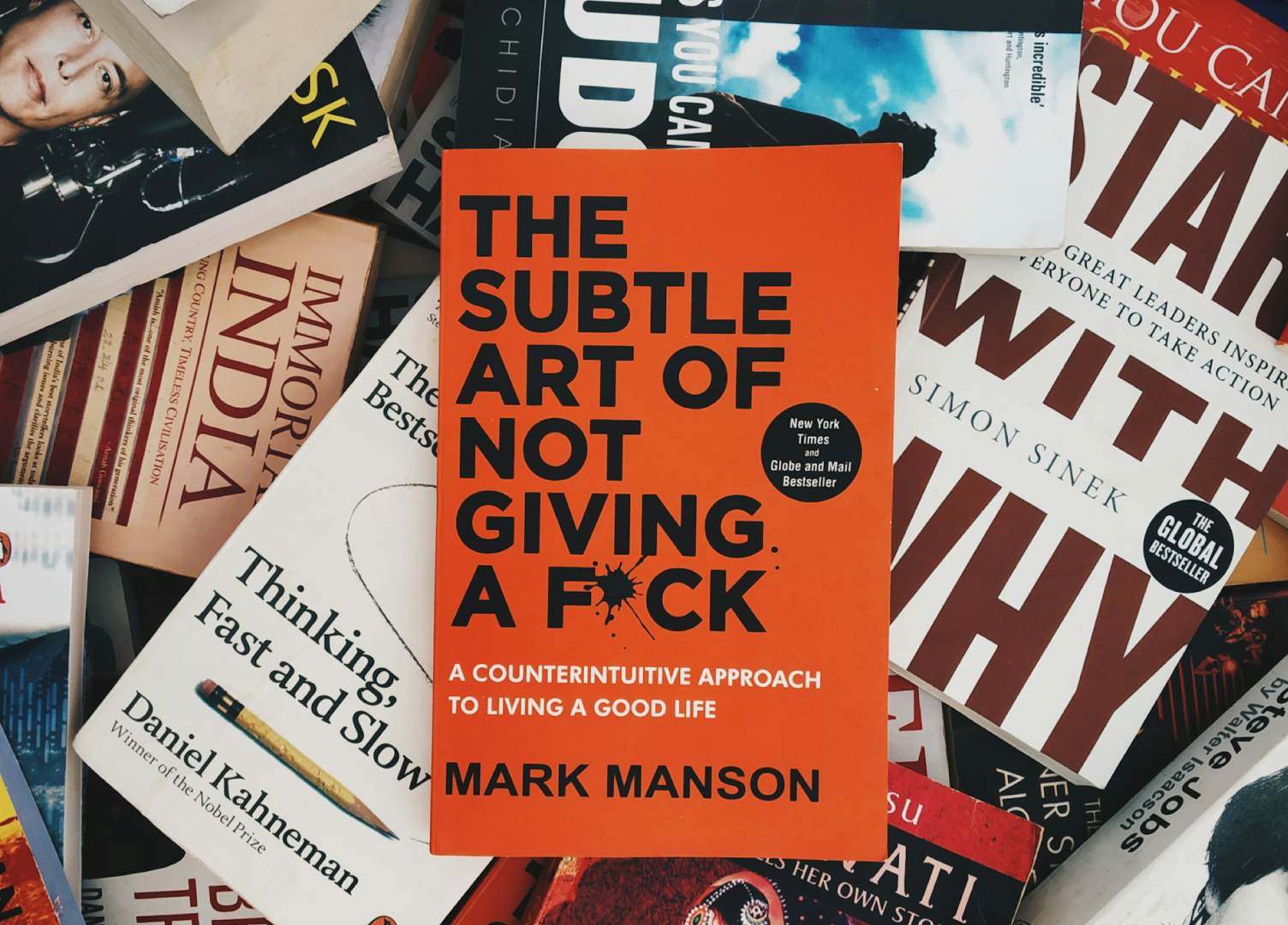
Designing a book cover is one of the most important steps in publishing — it’s the first thing a potential reader sees, and often the first factor that influences whether they click, buy, or keep scrolling. A well-designed cover communicates the tone, genre, and professionalism of your book before a single word is read.
Fortunately, you don’t need advanced design skills or expensive software to create a great book cover. With the rise of online design tools and AI-powered generators tailored for books, authors at all levels — from first-time writers to seasoned pros — can design professional-quality covers quickly, often with drag-and-drop simplicity. In this post, we’ll explore why using a cover maker app can save you time and stress, what to look for when choosing one, and a detailed comparison of the top tools available right now. By the end, you’ll know which cover maker fits your needs — and how you can start designing your own standout book cover today.
Why Use a Book Cover Maker App

Creating a book cover manually — with graphic design software or by hiring a designer — can be time-consuming, expensive, and sometimes overkill, especially for authors who are new to self-publishing or working on a tight budget. Book cover maker apps eliminate many of these barriers. They provide ready-made templates, genre-specific design elements, and easy-to-use editing tools so that you can produce a polished, market-ready cover in minutes.
Moreover, these apps help ensure your cover is formatted correctly — with appropriate dimensions, spine width (for print books), bleed/safe zones, and resolution — which is vital to avoid issues during printing or publishing. For eBooks, they let you export in high-quality JPG, PNG, or PDF formats. And perhaps most importantly, they give you creative control: you choose fonts, images, colors, and layout so the final design truly reflects your book’s story and vibe.
Key Features to Look For in a Book Cover Maker

Before diving into which tools are worth your time, here are the most important features to consider when selecting a book cover maker:
- Templates for different genres — from romance and thriller to nonfiction and cookbooks. A good template library helps you start with a design that matches your genre’s vibe.
- Customization flexibility — ability to edit fonts, colors, images, layout, and text so your cover is unique.
- Export options — high-resolution downloads suitable for eBooks, print books, marketing materials, or social media.
- Ease of use — intuitive drag-and-drop editors or AI-assisted generation for users with little or no design experience.
- Support for print and digital formats — some tools support full print-cover layout (front, back, spine) while others are better for eBooks or digital promos.
- Affordability or free tiers — especially helpful for indie authors, hobbyist writers, or first-time publishers.
Comparison Table: Top Book Cover Maker Apps
Here’s a comparison of several popular book cover maker tools including strengths, weaknesses, and who each is best for:
| Tool / App | Strengths / Key Features | Best For | Potential Limitations |
|---|---|---|---|
| EZ Cover Maker | Ready-made templates for common book sizes (paperback, hardcover, square, etc.); full-wrap print-ready cover creation (front, spine, back); built-in 3D mockups (hardback, softcover, spiral-bound, board books); drag-and-drop customization; large library of fonts, stock images and icons; transparent-background export; high-resolution output for print & eBooks; works on Mac & PC. | Authors who want an all-in-one solution: eBook + print covers + 3D mockups + marketing mockups — ideal for self-publishers, course creators, or creators selling physical/digital products | Requires a paid license/subscription; may include more features than needed for simple eBook covers; internet connection needed. |
| Fotor | Large library of premade templates (many genres); drag-and-drop editing; royalty-free images/fonts; free and paid options | Beginners wanting fast, easy cover design; eBook authors needing simple, clean covers | Free version is limited; might need manual adjustments for print/spine layout |
| Visme | Professionally-designed templates; customizable fonts, colors, layouts; export to PDF/JPG/PNG; user-friendly interface | Authors needing polished, customizable covers without advanced design skills | Template designs might feel generic if used widely |
| Picsart | Flexible editing tools; ability to use your own images; good for creative/photo-based covers; free-to-use | Authors wanting creative freedom, custom art/photo-based covers | Less structure than template-based tools — may require more design effort and skill |
| DocHipo | Simple, intuitive interface; suitable templates for eBooks or paperbacks; good free plan with watermark-free exports | Indie authors, bloggers, non-fiction writers seeking minimalist or quick covers | May lack advanced customization or print-specific layout tools |
| Kittl | Strong graphic and illustration tools; good font selection; ideal for stylized or illustrated covers (fiction, fantasy, children’s books) | Authors writing genres benefiting from illustration-heavy or artistic covers | Less beginner-friendly compared to template-based tools; may require experimentation |
| BeYourCover | AI-powered cover generation based on summary/genre; quick draft creation; customizable with editor post-generation | First-time self-publishers wanting instant draft covers or rapid prototyping | Generated covers may feel generic unless heavily customized; premium features may be needed for high-quality output |
How to Use a Book Cover Maker — Step-by-Step Guide

Define your book’s genre and tone. Before choosing a template or style, know the mood, audience, and genre of your book. This helps choose appropriate fonts, imagery, and color scheme.
Choose a template or start from scratch. Depending on how unique or professional you want the cover to look, pick a template from one of the apps above or build your own.
Customize visuals — fonts, colors, images. Swap out default images for royalty-free or custom photos/illustrations that match your story. Choose readable fonts that suit your genre.
Check dimensions and export settings. For eBooks: make sure resolution is high enough (e.g. 300 dpi for print, 150–300 dpi for digital). For print books: ensure spine width and bleed/safe zones are correct.
Preview and adjust — front cover, back cover, spine. If you plan to publish a paperback or print version, ensure back-cover layout and spine text/width are set properly.
Export final cover in correct format (PNG, JPG, PDF). High resolution export ensures your cover looks professional on Amazon, printed copies, or promotional materials.
Test visibility in thumbnail size. Especially for eBooks: ensure title and main elements remain readable at small thumbnail sizes (like on Amazon or eBook stores).
Why I Recommend EzCover (and Where to Use It)
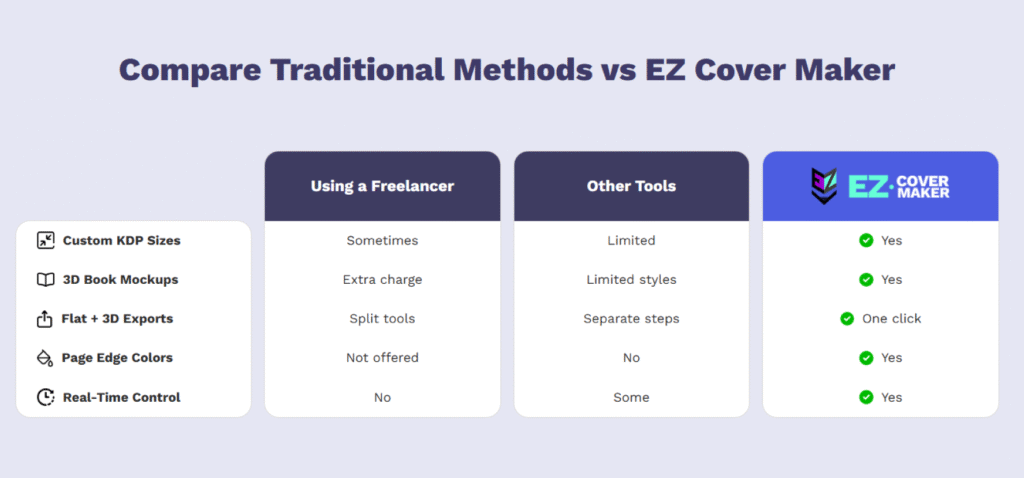
All-in-one tool — Unlike general-purpose graphic tools, EZ Cover Maker is specifically built for authors, offering book-specific layouts (front, spine, back), print-ready formats and even 3D mockups.
Flexibility for multiple formats — Whether you publish eBooks, print books, or want marketing/social-media mockups, EZ Cover Maker supports all of that from the same dashboard.
Ease-of-use & professional output — Even without design skills you can create polished covers that fit industry standards for publishing.
If you’re serious about giving your book a professional edge — but still want ease of use and flexibility — I often recommend EzCover. It offers a balanced mix of usability and customization suitable for both first-time authors and veterans alike. With EzCover, you can design a polished, market-ready cover without the steep learning curve, and get print-ready output whether you publish digitally or physically.
Conclusion
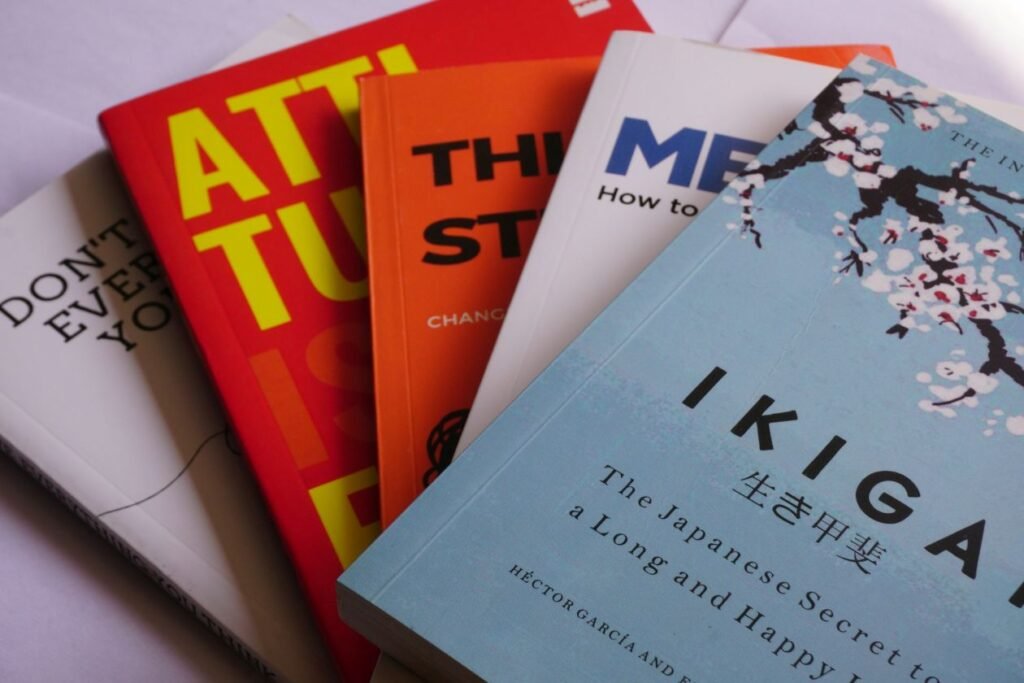
Designing a book cover doesn’t have to be complicated or expensive. With today’s range of book cover maker apps — from simple drag-and-drop editors to AI-driven generators — any author can create a cover that looks professional, reflects the tone of their writing, and attracts readers. Whether you choose a minimalist, illustration-forward, or photo-based design, what matters most is clarity, readability, and a cover that resonates with your audience.
For beginners and pros alike, a tool like EzCover can make the process straightforward while still delivering high-quality results. If you’re ready to take your book from manuscript to market-ready, investing time in your cover design is one of the smartest steps you can take.
Once you pick your app, start experimenting — and you might be surprised how quickly you can design a cover that not only looks good, but sells